

To use a Discord translator bot, choose a bot with current instructions, add it through its official installation link, authorize it for the intended server, and test one translation command in a text channel. Configure automatic translation only after that first message works.
For example, Discord Translator by nvu.io documents -translate spanish Hello World. iTranslator documents a /translate command and a message context-menu option. Those are different apps with different controls; do not combine their commands into one setup.
Choose the translation behavior before choosing the bot
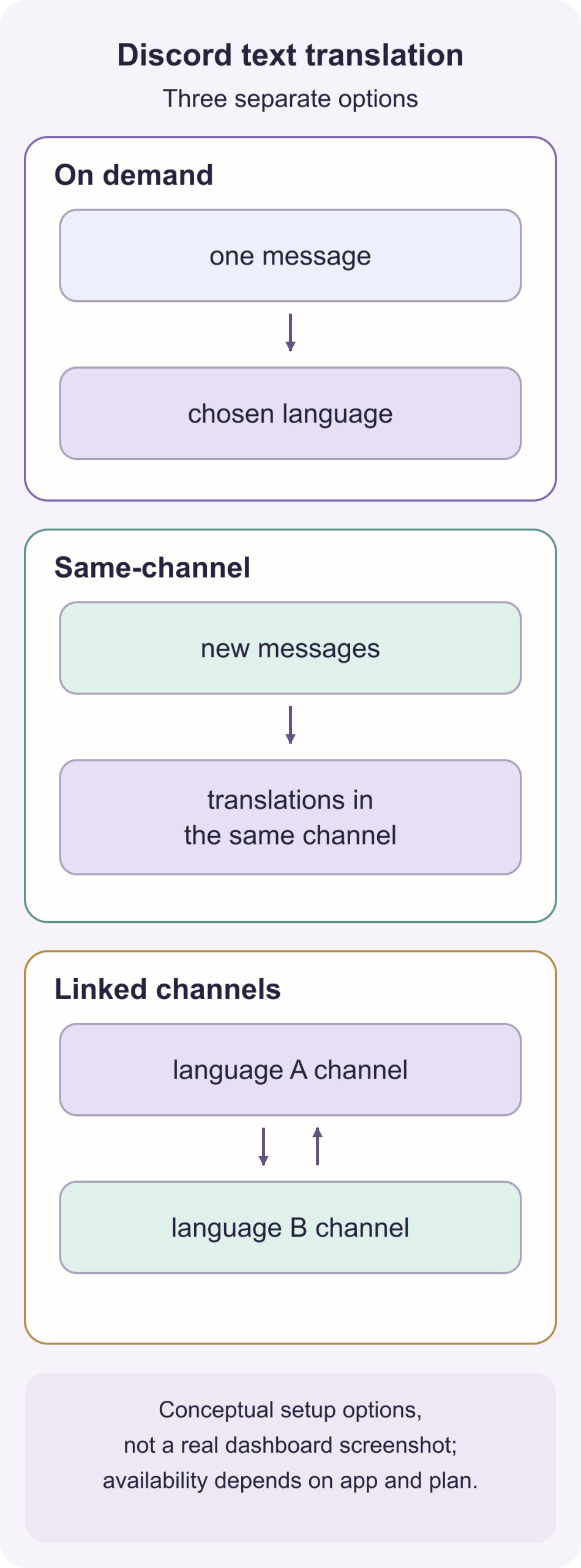
| What your community needs | Look for | Useful constraint |
|---|---|---|
| Read an occasional foreign-language message | A command, message action or reaction-triggered translation | Check whether the answer is public in the channel or visible only to you. |
| Keep one multilingual channel readable | Same-channel automatic translation | Keep the language list short so each message does not create a wall of copies. |
| Let members use separate language channels | Linked or mirrored channels | Check where replies and attachments appear before enabling it for a busy group. |
| Translate without managing a server | A user-installable app for on-demand translation | Personal installation does not give you authority to configure server-wide automation. |
I would start with on-demand translation in a help or introductions channel. You can see which languages members actually need before automatically processing every message.
Install a server bot through its actual developer
The following example uses nvu.io’s Discord Translator setup instructions. You need permission to add the bot to the server. If the server is absent from the installation chooser, ask its owner or an authorized administrator to handle the installation.
- Open the developer’s Discord Translator page and use its Install link.
- On Discord’s authorization screen, select the intended server. Check the app identity and requested permissions before authorizing.
- Allow it to access the text channel where you will test it. Server installation alone does not override a private channel’s permissions.
- In that channel, enter
-t helpto see the bot’s own instructions. - Run a simple translation command, then check that the result appears where you expect.
Discord’s bot authorization documentation describes adding a bot to a server where the person authorizing it has the required permissions. This installs a third-party app; it does not turn translation into a native Discord feature.
Translate a message explicitly
For nvu.io’s bot, the documented full command is:
-translate spanish Hello WorldThe first argument is the target language, followed by the text. To specify the original language too, its text translation guide gives this example:
-translate german:spanish Wie geht's?Use the bot’s configured prefix if an administrator has changed it. A prefix command such as -translate is not interchangeable with a slash command from another app.
For an existing message, nvu.io also documents flag reactions: hover over a desktop message and add a flag emoji, or press and hold the message on mobile and choose Add Reaction. The bot translates according to the flag’s supported language mapping. Its default destination is the original channel; administrators can change that destination in its dashboard. If you need an unambiguous target language, an explicit language command is easier to control than a country flag.
Turn on automatic channel translation
Once explicit translation works, choose a limited test channel. In nvu.io’s documented dashboard flow:
- Select your server, then the channel.
- Open its automatic translation settings.
- Choose Automatic mode: Same-channel.
- Enter the needed target languages by name or code.
- Save, send a test message, and check the output with a member who reads the target language.
For separate language channels, its alternative is Linked Group mode: assign the channels a shared group name and set each channel’s language. The guide documents -translate groups to inspect the groups. It also gives -translate channel auto stop to stop automatic translation for a channel.
Check current plan limits before expanding to more languages or channels. Do not assume a successful test message means an unlimited free service. Keep automatic deletion options off until you understand what happens to originals and related translations.
What if you cannot add a server bot?
iTranslator’s current site describes a user-installable app for on-demand translation in DMs and servers where the server bot is not installed. It documents /translate and a right-click message action. If that is your use case, choose the account installation offered by the app, then follow its own command prompts for text and target language.
This can be a better fit for a member who needs to read occasional messages. It does not authorize you to install a server bot, change other members’ roles or mirror channels. The app’s availability, permitted contexts and usage limits still apply.
Check permissions and message handling
For its full documented behavior, nvu.io lists channel visibility, sending messages, embeds, reading message history and managing messages. It explains that managing messages is used for edit/deletion synchronization and automatic command deletion. Attachment forwarding, role management and webhook-style output have separate feature-related permissions.
Review those needs for the configuration you intend to use. A copied tutorial asking for every permission is not a reason to grant them. The bot must be able to see the test channel and post its answer there; if it cannot, changing the target language will not fix the failure.
Also check the developer’s privacy policy, retention terms and translation provider. Restrict the bot to the channels where its processing is appropriate. A private support channel can contain much more sensitive material than a public gaming discussion.
If the bot does not respond
- Confirm you are using that bot’s actual command format and configured prefix.
- Check its channel access, permission to send messages, and any command restrictions.
- Try a plain new text message before testing an attachment, webhook or old message reaction.
- Check account or server quota and supported languages in the developer’s current dashboard.
- For automatic translation, check the channel mode and target languages, then stop automation if it is posting unwanted duplicates.
These instructions focus on text translation. Some apps offer separate speech tools, but a text command or TTS feature does not prove that the bot translates an ongoing voice channel. For a live call, check the specific audio-capture, caption and outgoing-speech requirements before adding another app.