

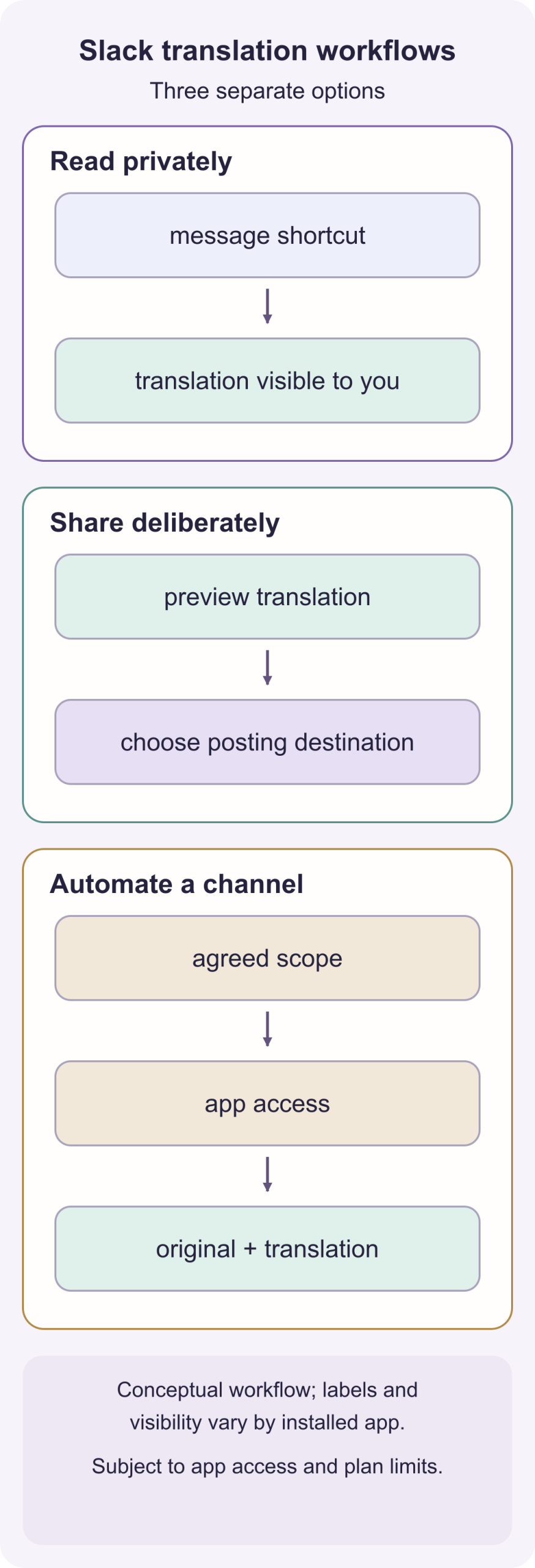
For a Slack message, use a translation app already approved in your workspace and open its action from the message’s menu. For example, the third-party Translate app offers Translate this message; it also provides a /translate command for text you enter.
If your workspace has no suitable app, copy the message into a translator your organization permits, or request an app through Slack’s installation flow. Automatic translation of a whole channel is a separate choice, with broader message access and more visible output.
Check which translation app your workspace uses
“Translate” can mean several different Slack apps. Their command syntax, language settings and output visibility are not interchangeable. Find the app’s actual name and developer before following a setup guide.
This guide uses Translate by Mark Carey Consulting as a documented example. Its Marketplace listing describes message translation, a translation form, slash commands and automatic translation. Those are third-party app capabilities, not a promise that every Slack workspace has the same native feature.
Translate one received message
- Open the channel or DM containing the message.
- Open that message’s More actions or shortcuts menu.
- Choose Translate this message for the Translate app. If it is not visible, look through the available message shortcuts for the installed app.
- Follow the app’s language controls and read the result.
Translate’s own guide says the result of this message shortcut is visible only to you. That is useful when you simply need to understand an occasional message without adding a second version to everyone’s channel.
Another workspace may use Straker instead. Its message-translation instructions name AI Translate, with More message shortcuts as a way to find it. Straker says that result is private to the requesting user and uses their local language setting in Slack. Use those instructions only for that installed app.
Use /translate to prepare a reply
For the Translate app, entering /translate alone opens a form where you can choose a language and enter text. Its documented direct command format is:
/translate es Please review the updated schedule before our meeting.
Here, es is the target language code for Spanish. Replace the example sentence with your own text. The app attempts to identify the original language. Check the output before sharing it.
The vendor says the command and its result are initially visible only to you, with a Post This option for sharing the translation to the current channel or DM when available under your plan. You can also copy a translated draft into the appropriate reply field. Pay attention to the destination: translating text while viewing a channel does not guarantee a later post goes into the thread where the discussion started.
I would write an operational reply around the decision the team needs. For example:
“The revised launch is November 18 at 14:00 UTC. Ana owns the checklist. Please confirm in this thread when the review is complete.”
Keep the date, time zone, owner and action in the translation. A smooth version of “we’ll do it later” still leaves four people guessing. Keep a product code or release name unchanged if it is how the team identifies the work.
Install or request a translation app
Slack’s current installation guide says members can install apps by default, but workspace owners can require approval or restrict particular apps.
- On desktop, open Agents & tools in the sidebar, or find it under More. Some workspaces show Tools instead.
- Open Apps and search for the exact translation app.
- Choose Add, then Add to Slack on its Marketplace page.
- Review the requested access and follow the installation prompts. If the app is already installed, you may be asked to connect your account.
- If approval is required, submit the app request with a short explanation of the channels, languages and task you need. Wait for the workspace’s decision before using it.
If the app is restricted, Slack says members cannot install or request it through that flow. Ask the workspace owner which approved method to use. Copying company messages into an unapproved external translator does not solve that policy question.
Enable automatic translation only where it helps
For Translate’s documented channel workflow, invite @translate to the intended channel. Its vendor says mentioning the app can offer an invitation if it is absent. Once it is a member, mention it and open Settings to configure automatic translation.
Decide whether to translate your own messages or everyone’s messages, then select the target language and display format. The vendor describes these choices:
- Source First: the original appears above the translation.
- Translation First: the translation appears above the original.
- Replace: the translated version replaces the original message text.
Start in one agreed channel, preserve the original during the trial, and check how replies look to another member. When translating everyone’s messages, the vendor notes that some display formats may ask members to authorize message modification; messages from people who do not authorize can appear as separate translated messages instead.
Automatic translation in a DM is not permission to read every existing private conversation. The vendor’s documented method creates a new conversation that includes the other person and the translation app. Confirm the participants before moving a discussion there, and check current plan limits before relying on automation.
If a shortcut or translation is missing
Check the exact installed app first. Then check whether your account is connected, the app can access that conversation, the message shortcut is enabled, and your plan or quota permits the action. For automation, check channel membership and the channel’s own settings; installing an app and enabling it in a channel are separate steps.
Review the app’s data-access disclosures before broadening its scope. Translate’s Marketplace page lists access to channel and conversation content and permissions to perform actions. A private-looking translation result describes who sees the result in Slack; it does not prove the text never leaves Slack for processing.
This guide covers Slack text. Translating huddles, voice clips or a meeting recording requires a tool that explicitly supports that audio input. A working /translate command does not establish huddle translation.