Owll Translator
Voice TranslatorUse CasesBlogFAQDownload

Live voice translation

Real-Time Telugu and Hindi Voice Translator

Conversation

Conversation transcript

Recognized speech and translations will appear here.

Recognized speech and translations will appear here.

Checking voice service

We’re checking the language list and your available Web time. This can take a moment.

Start
A little gift from Owll Translator

Keep translating with 3 free days

Your web translation time is up. Continue in the Owll Translator app.

Get the app

Today's free trial limit has been reached

Today's free web translation allowance is fully used. Please try again tomorrow.

Get the app

A simple three-step flow

How to translate Hindi and Telugu speech online

This live Telugu–Hindi page opens with Telugu (India) in the first position and Hindi (India) in the second. Speakers can take turns in the same session to check an arrival time, a route, or a short instruction, with Telugu script and Devanagari kept in separate caption columns.

  1. 01

    Check the Telugu-first starting order

    The first language is Telugu (India), followed by Hindi (India). Confirm the displayed labels before starting. You can use the swap control first if you want the reverse starting order.

  2. 02

    Start the live exchange

    Press Start translating and allow the browser microphone request. Wait for Listening, speak one complete thought in Telugu or Hindi, and leave a brief pause for the other person’s reply.

  3. 03

    Read the script tied to each selection

    Telugu appears in Telugu script and Hindi in Devanagari. Check names, places, and digits in the original line. If a sentence is hard to follow, ask for a shorter repeat in one selected language.

Try voice translation
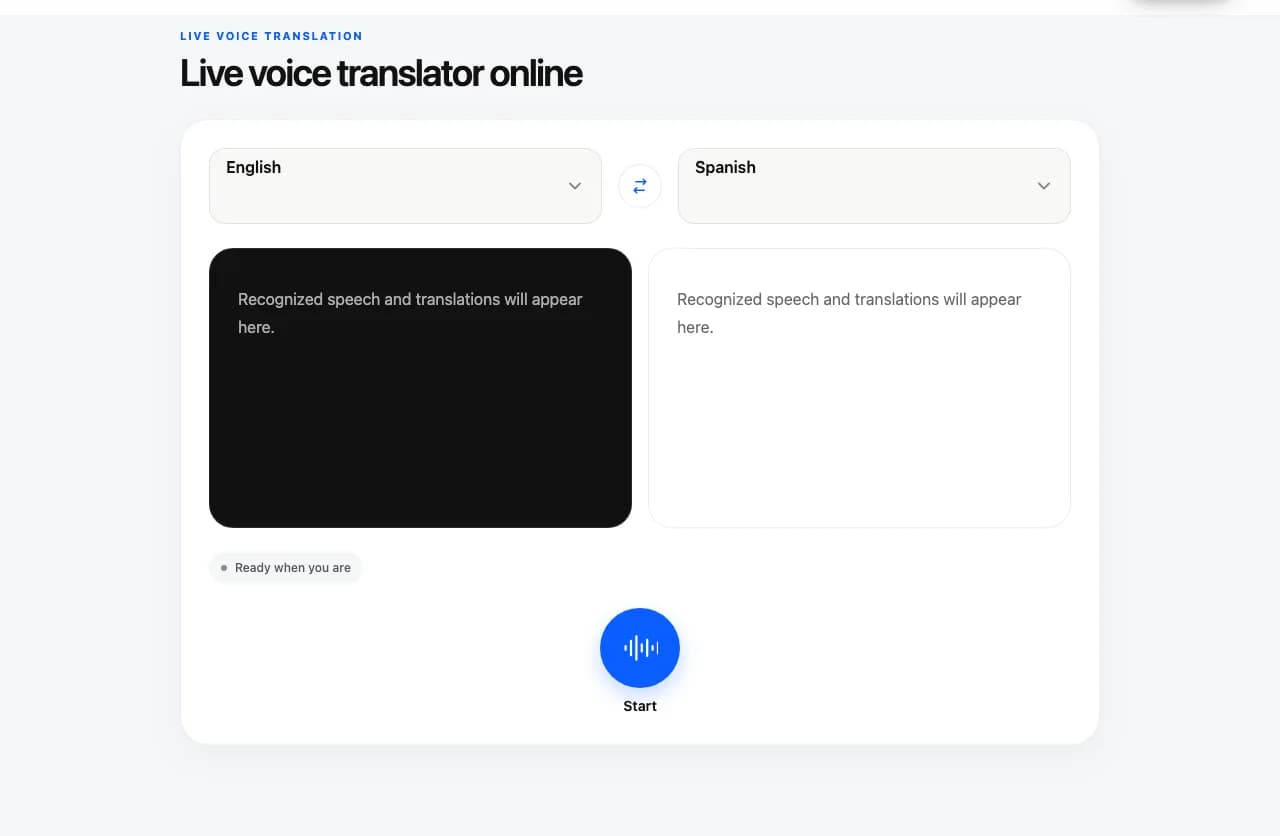
Owll Translator browser voice translation interface showing two selected language captions and the Start control

Words on screen

Follow each turn in the two caption columns

Read Telugu (India) speech beside its translation, then let the other speaker answer in Hindi (India) if they prefer. The text stays grouped by the two selected languages, so check the original wording when a place, name, or number matters.

Captions are text only, and either selected language can be spoken in the same session. The examples on this page are written to illustrate the languages; they are not captions captured from a live session.

With live captions, both people can follow each turn and respond while the conversation is underway. Use the two language columns to check names, numbers, and places together.

Two-language text captionsIllustrative phrase pair

Telugu (India)

మీరు రేపు ఎప్పుడు వస్తారు?

Hindi (India)

आप कल कब आएँगे?

Language selections

Choose the two languages for this conversation

This page starts with Telugu (India) and Hindi (India). Speakers can take turns in either selected language during one session. The language columns stay fixed, and the Web trial is up to one cumulative minute per visitor.

How to select the two conversation languages in the browser voice translator
SettingHow it works
First languageStart with Telugu (India).
Second languageUse Hindi (India) as the second language; both remain visible in separate caption columns.
Conversation directionEither selected language can be spoken in the same session; its translation appears in the other language’s column.

This page starts with Telugu (India) and Hindi (India). The example uses Telugu script and Devanagari. Check the picker’s order before speaking, and verify names or numbers in the original caption. The page does not provide transliteration.

Short, practical exchanges

Where a short live exchange can help

Confirming when someone will arrive

Ask the arrival question, then repeat the time in a separate turn. Both speakers can check the Telugu and Hindi lines before changing their plans.

Checking a stop or destination

Name one destination and pause for the reply. Compare the Telugu place name with the Hindi caption before selecting a route.

Asking what to do next

At a service desk, ask one question at a time. If the answer contains a number or a person’s name, read that detail back rather than relying on a long translated sentence.

Two adults talking over a map and laptop at a café

Practical tips

Make each caption easier to check

  • 01Read the selector order: Telugu (India) first, Hindi (India) second; swap before Start only if you want the reverse order.
  • 02Keep the arrival time or destination in a short separate turn so the original script is easy to inspect.
  • 03Compare the Telugu and Hindi text for names or numbers, and ask for a repeat when either caption is unclear.
  • 04Wait for the Listening status before speaking; opening the page does not start microphone capture.

Quick troubleshooting

No microphone input?

Check this site’s microphone permission and your system input device, then return to the tool and start again. If another application is using the microphone, close that recording session first.

Does the browser play translated speech?

No. The browser voice translator shows recognized speech and translations as text captions only; it does not play translated speech.

Connection interrupted?

Wait for the status to recover before speaking. If the session ends, check your connection and press Start again. A reconnect does not guarantee that speech from the interruption can be recovered.

Know what to expect

What you can do in the browser

This page is designed for live microphone translation. It does not import media or keep a transcript library.

Current voice translator web tool capabilities
CapabilityAvailability
Live microphone speechSupported
Speak after the Listening status appears.
Two-language text captionsShown together
Each language stays in its own compact caption window, and the words remain on the page after stopping until you leave or refresh.
Text-only translationOn-screen captions
The browser tool shows recognized speech and translations as text. It does not play translated speech.
Two-way conversationBoth selected languages
Take turns speaking either language in the same session. The transcript columns stay fixed by language.
Audio/video files or meeting audioNot on this page
This browser tool is for live microphone speech, not saved recordings.

Use Owll.ai Audio to Text for an audio or video file. To record and transcribe a live Zoom, Teams, or Google Meet, open Owll.ai Meeting Recorder.

These workflows handle recordings in a separate Owll.ai account or workspace; current plan terms apply.

Saving or exporting a transcriptIn an Owll.ai workspace
Live captions here are not saved or exportable.

For an Audio to Text recording, save its transcript in an Owll.ai workspace or export it as TXT, DOCX, or PDF.

Audio to Text

For a longer conversation or other translation tasks, explore the Owll Translator app. App availability and supported languages may differ from this browser tool.

Hindi and Telugu voice translator FAQs

Questions before you start

01Can I translate Telugu to Hindi and Hindi to Telugu?

Yes. The page starts with Telugu (India) first and Hindi (India) second, and either selected language can be spoken in the same session. Check the picker before speaking.

02Can I switch the starting order?

Yes. Use the swap control before starting if you want Hindi first. The two selected languages remain the same pair.

03Which scripts are used for Telugu and Hindi?

The example uses Telugu script for Telugu and Devanagari for Hindi. The page does not promise a Latin-letter pronunciation guide.

04Does this page translate a Telugu or Hindi voice note?

No. It uses live microphone speech after Start and browser permission. It displays text captions and does not import saved recordings or play a translated voice.

05What is the Web trial limit?

The browser trial allows up to one cumulative minute per visitor. Time already used stays used after stopping or refreshing. The separate app offer is three free days.

App features

Explore more ways to use Owll Translator

These links describe features in the Owll Translator app; they are not additional controls in this browser tool.

Keep the conversation going

Try a short exchange here. Take Owll Translator with you.

Explore the Owll Translator app for your next conversation. Check the app for current features, supported languages, and plan options.

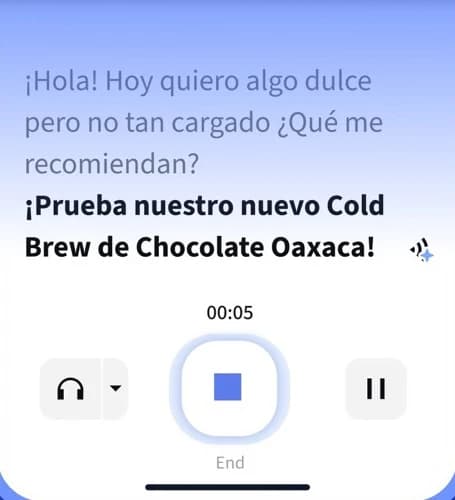
Owll Translator app conversation interface with a Spanish sample exchange and playback controls
Owll Translator app · Interface detail